

The projects library
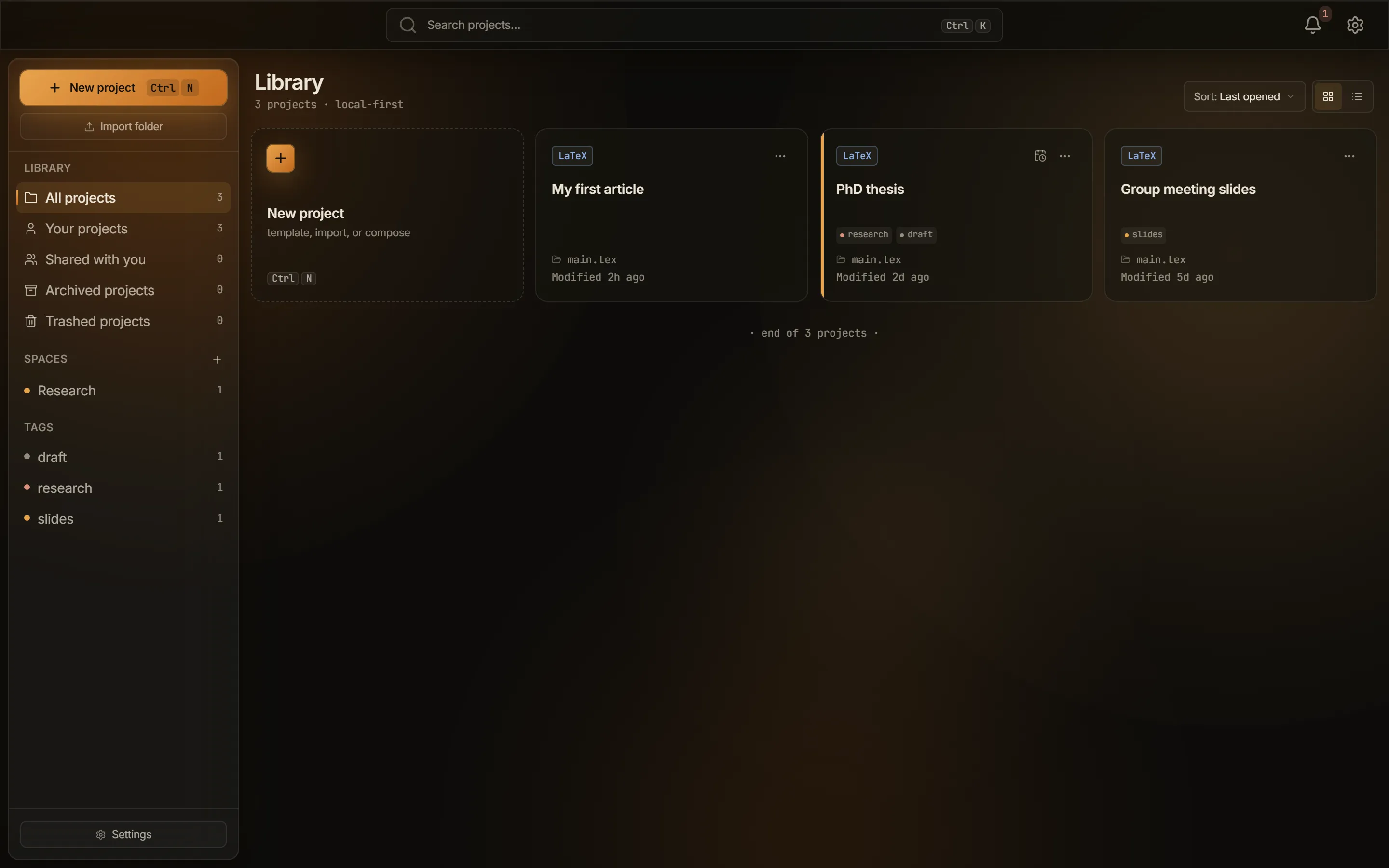
The projects library lists every project in your projects root, and it is where you create, import, tag, archive, and trash them. It is the screen you see whenever no project is open, and Back to all projects in the editor’s project pill returns you to it. The heading reads Library, and the line under it counts what you have: “12 projects · local-first”.
Cards and list views
Section titled “Cards and list views”The Cards and List buttons switch the library between a grid of cards, which is the default, and a compact list. Both views lead with a New project tile, except in the trash.
A card carries the project’s format chip (LaTeX or Typst), up to three tag chips with a +N overflow marker, the root file name, and a relative Modified time. Holding the pointer over a card shows the full Created, Modified, and Last opened stamps, prefixed with the space the project belongs to.
Three more markers appear when they apply:
- A cloud icon marks a project bound to a WebDAV server, with the tooltip “Synced · webdav”. See Cloud sync with WebDAV.
- A branch icon marks a project that is a git repository, with the tooltip
Git repository · <branch>. See Git in Typeward. - An Archived chip marks an archived project.
Typeward reads the created and modified times from disk every time the library loads, rather than storing them in the project file. They stay honest when you touch a folder outside Typeward. Modified is the newer of the project folder and the root file.
Search and sort
Section titled “Search and sort”The search field in the top bar, placeholder Search projects…, filters case-insensitively across project names, root file names, and tags. Escape clears it.
The Sort: dropdown holds seven orders: Last opened, Name (A–Z), Name (Z–A), Date created, Last modified, Deadline, and Format. Last opened is the default, and projects you have never opened sink to the bottom of it. Deadline puts the soonest first and leaves undated projects last.
When a filter or a search leaves nothing to show, the library reads No projects match and offers a Clear filters button.
Library sidebar
Section titled “Library sidebar”The sidebar on the projects screen filters the library. It opens with the New project and Import folder buttons, and it ends with a Settings button. Under Library, five rows carry live counts.
| Row | What it lists |
|---|---|
| All projects | Every project that is neither archived nor trashed. |
| Your projects | The same projects as All projects. |
| Shared with you | Nothing. Its count stays 0. |
| Archived projects | Only archived projects, which are hidden from every other view. |
| Trashed projects | Only trashed projects, likewise hidden from every other view. |
Typeward has no sharing and no collaboration, so every project is yours and Shared with you stays empty. Its view reads “Nothing shared with you yet”, followed by “Sharing and collaboration are coming soon.” A project reaches another machine through a WebDAV server or a git remote instead.
Two more sections sit under those rows:
- Spaces are your own groups, for example Thesis or Teaching, each with a name and a tint color. Add one with the + button (New space), and edit or delete one from the row’s … menu. Deleting a space never touches its projects, and the filter resets to All projects. Until you make one, the section reads “No spaces yet. Add one with +.”
- Tags lists every tag used on a project that is neither archived nor trashed, most-used first, and selecting one filters the library. The empty hint reads “Tags you add to projects appear here.”
New project and Import folder
Section titled “New project and Import folder”Two buttons at the top of the sidebar bring a project into the library.
- New project,
Ctrl+N(Cmd+Non macOS), opens the new-project dialog, and the shortcut works from anywhere in the app, including the command palette. The dialog also holds the Template, Clone repository, and Overleaf zip starting points. See Your first project and Project templates. - Import folder turns a folder that already exists, such as a manually copied repository or an unzipped download, into a Typeward project. Typeward writes a
.typeward/project.jsonfile into the folder and names the project after it. A folder that already carries that file is read as-is. See Files and folders.
Import picks the root file from the folder’s top level, in this order: main.tex, then the alphabetically first .tex file, then the alphabetically first .typ file. Subfolders are never searched. The winner also sets the project format, so a folder of Typst sources imports as a Typst project. If the top level holds no .tex and no .typ file, the import fails.
Import works only for folders inside your projects root. Anywhere else, the app tells you so: “Import only works for folders inside your projects root (<root>). Move the folder there first, or use Clone / Overleaf import from New project.” On success the project opens in the editor. For the zip and git-bridge paths, see Importing from Overleaf.
Tags and deadlines
Section titled “Tags and deadlines”Edit tags… in a project’s context menu opens the tag editor, headed Tags with the project name. It holds removable chips, an Add a tag… field where Enter commits, and suggestions drawn from the tags on your other projects. A project holds up to 32 tags of up to 48 characters each, and duplicates that differ only in case collapse into one.
Each project carries at most one deadline, a date with no time. Set it in the Deadline (optional) field when you create the project, or later from the calendar button on the card or row. That button stays hidden until you point at a project that has no deadline. The popover holds a date field and a Clear button.
An overdue deadline shows in the error color, and a deadline due within seven days shows in the warning color. Sorting by Deadline brings the next thing due to the top of the library.
Project context menu
Section titled “Project context menu”Right-click a card or a row, or select its … button, to open the project context menu.
| Item | What it does |
|---|---|
| Open | Opens the project in the editor. |
| Move to space | Assigns the project to one of your spaces, or to None. |
| Edit tags… | Opens the tag editor. |
| Rename… | Changes the display name only. The folder on disk keeps its name and path. |
| Duplicate | Copies the project into a new folder under your projects root, named <name> copy by default. |
| Archive / Unarchive | Hides the project from every view except Archived projects, and marks it with an Archived chip. |
| Move to trash | Flags the project as trashed and hides it from every other view. |
A trashed project’s menu is different: it offers Restore and Delete permanently….
A duplicate carries over the tags, space, deadline, and build settings, and it starts unarchived and never-opened. It does not carry the git or cloud binding, so the copy is a plain local folder. Typeward skips .git, .svn, .hg, and node_modules, and of the project’s .typeward folder only citations/ travels, so snapshots, review threads, and build output stay behind.
Trash and permanent delete
Section titled “Trash and permanent delete”Move to trash sets a flag in the project’s metadata and leaves the folder on disk untouched. Trashed projects appear dimmed under Trashed projects and cannot be opened. Selecting one prompts Project is in the trash with a Restore & open button, and the Moved to trash toast carries an Undo action. An empty trash reads “Trash is empty”, followed by “Projects you move to the trash can be restored or deleted permanently.”
Delete permanently… is offered only on already-trashed projects. After a confirmation, Typeward moves the folder to the Recycle Bin on Windows, the Trash on macOS, or the system trash on Linux. Even a permanent delete leaves one more safety net outside the app. For a project bound to a WebDAV server, the dialog adds a line: “The remote copy on your cloud provider stays untouched.”
Projects root
Section titled “Projects root”Typeward creates every project under a single projects root, Documents/Typeward by default: %USERPROFILE%\Documents\Typeward on Windows, and ~/Documents/Typeward on macOS and Linux. The library lists every direct subfolder of that root that holds a .typeward/project.json file, and it ignores plain folders until you import them.
Change the root under Settings → Projects & files, in the Storage card’s Projects folder row (Change…). New projects are created in the new location, and existing projects stay where they are. The folder must be an absolute path inside your Documents folder, and Typeward rejects anywhere else. For everything else Typeward writes to disk, see Data locations, credentials, and uninstall.
Layout and what persists
Section titled “Layout and what persists”Typeward keeps your view and sort choices between sessions, so the library opens the way you left it. On a narrow window the sidebar collapses into a drawer behind a Library filters button.
Three settings under Settings → Projects & files change what the library shows.
| Setting | Default | What it changes |
|---|---|---|
| Enable Spaces | On | Shows the Spaces group in the sidebar. |
| Enable Tags | On | Shows the Tags list in the sidebar. |
| Word count on project cards | Off | Adds an approximate word count to every card. |
The word count reads only each project’s root file when the library loads, so \input children are never counted, and the number carries a ~ prefix to say so.