

Themes and appearance
This guide shows you how to change Typeward’s appearance: the theme, the accent color, the density and scale of the interface, and custom themes of your own. For every appearance setting listed with its default, see Settings reference.
Open Settings with Ctrl+, (Cmd+, on macOS) and select Appearance. That screen holds every control in this guide.
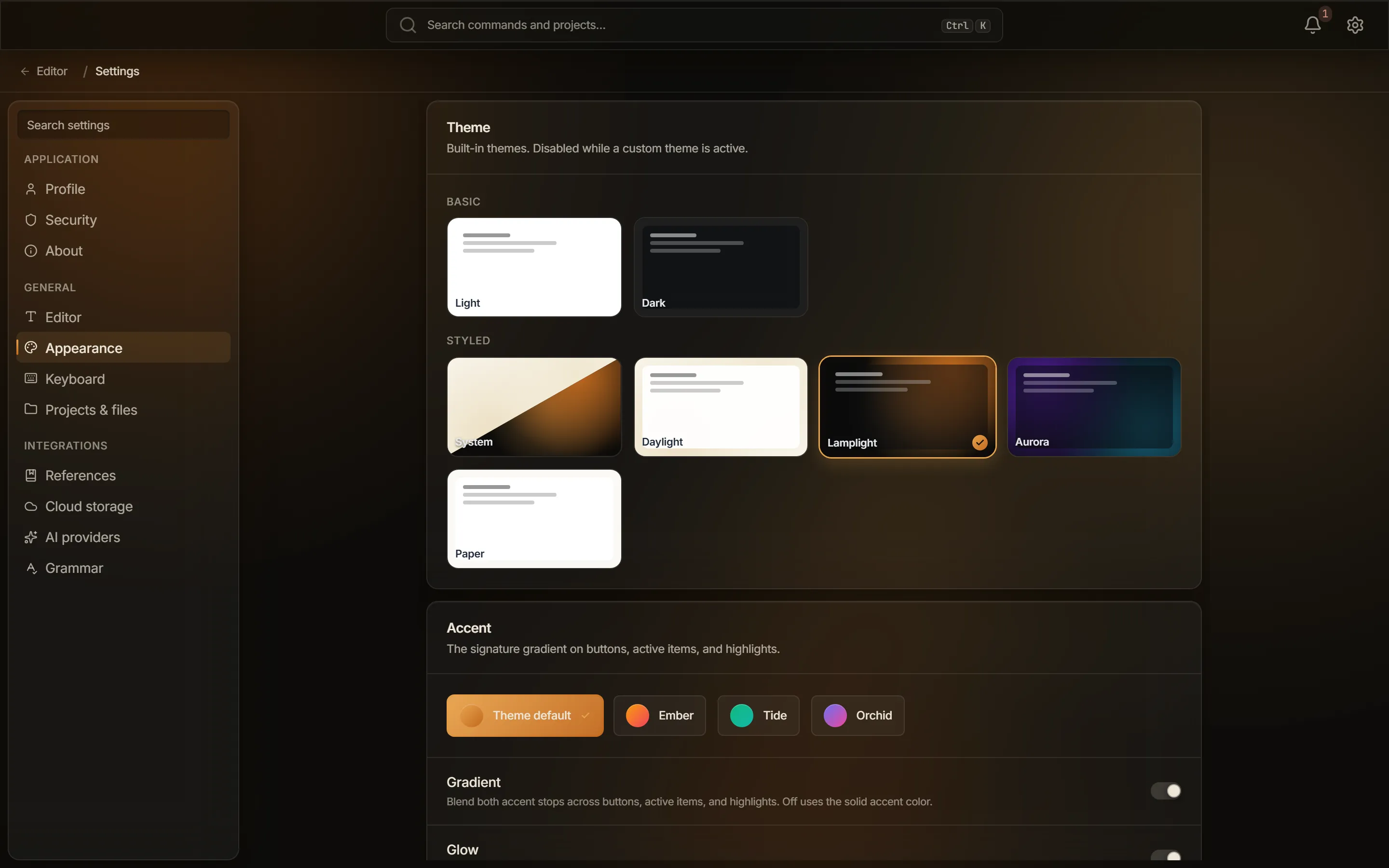
Pick a built-in theme
Section titled “Pick a built-in theme”The Theme card holds six built-in themes in two groups, and the default is Daylight.
| Theme | Group | Light or dark |
|---|---|---|
| Light | Basic | Light |
| Dark | Basic | Dark |
| Daylight | Styled | Light |
| Lamplight | Styled | Dark |
| Aurora | Styled | Dark |
| Paper | Styled | Light |
Select a tile to switch to that theme.
The Styled group also holds a System tile that follows your operating system’s appearance. A light operating system resolves to Daylight, and a dark one to Lamplight. Typeward re-tints the moment the operating system switches, with no restart.
Set the accent color
Section titled “Set the accent color”The Accent card offers four choices:
- Theme default: the active theme’s native accent
- Ember: amber to rose
- Tide: emerald to teal
- Orchid: indigo to pink
Two toggles refine how Typeward uses the accent:
- Gradient (on by default): blends the accent’s two color stops across buttons, active items, and highlights. With it off, Typeward uses a single solid accent color.
- Glow (on by default): puts a soft accent glow behind primary buttons and hovered cards. The row appears only while a Styled theme is active, and on the Basic themes glow is off regardless of the setting.
Adjust density, scale, and motion
Section titled “Adjust density, scale, and motion”The Density & motion card holds four controls.
| Control | Default | What it does |
|---|---|---|
| UI density | Cozy | Sets padding and row heights across the app. The other choices are Compact and Comfortable. |
| Interface scale | 100% | Scales text and controls together, from 90% to 150% in steps of 5. |
| Animations | On | Turns transitions, easings, and ambient motion on and off. |
| Ambient lights | On | Shows the soft radial light blobs behind the glass surfaces. |
Each of the four carries one condition:
- UI density: on a touch device, the first launch starts at Comfortable instead. Picking any density yourself opts that device out of the automatic choice.
- Interface scale:
Ctrl+=andCtrl+-(Cmd+=andCmd+-on macOS) step this same setting from anywhere in the app, andCtrl+0resets it to 100%. Those keys run the Zoom In, Zoom Out, and Reset Zoom commands. Typeward has no separate window zoom, and the scale you land on survives a restart. See Keyboard shortcuts. - Animations: when your system’s Reduce Motion setting is on, animations stay off regardless of this toggle.
- Ambient lights: the row appears only while a Styled theme is active, since the Basic themes have no blobs to dim.
Add a custom theme
Section titled “Add a custom theme”A custom theme is one JSON file in the themes/ folder of Typeward’s app data folder, and it layers your own tokens over a built-in base. On Windows that folder is %APPDATA%\com.typeward.app\themes. See Data locations, credentials, and uninstall.
The Custom themes card carries a master toggle, Enable custom themes, which is off by default.
- On the Custom themes card, turn on Enable custom themes.
- Select Create sample to write
harbor.json, a complete dark theme on the Lamplight base that uses every available token. - Select Open folder to open the
themes/folder in your file manager. - Copy
harbor.jsonunder a new file name and edit the copy. - Back in Typeward, select Reload.
- Select the new theme’s tile to activate it.
Selecting Create sample again never overwrites an existing harbor.json, so a copy you have edited is safe.
Write the theme file
Section titled “Write the theme file”Each theme file holds three fields:
{ "name": "My theme", "base": "lamplight", "tokens": { "--token-name": "value" }}| Field | What it sets | Limits |
|---|---|---|
name |
The name shown on the theme’s tile | 1 to 64 characters |
base |
The built-in theme that supplies every token you do not override | light, dark, daylight, lamplight, aurora, or paper |
tokens |
The CSS custom properties this theme overrides | Up to 200 per file, keyed by -- plus lowercase letters, digits, and hyphens |
Token values are capped at 256 characters and may not contain ;, {, }, <, >, or a backslash (\). A theme file may be at most 64 KB. The file name becomes the theme’s id, and may hold only letters, digits, -, and _. An invalid file is never silently skipped, because the Custom themes card shows a per-file warning instead.
Reload after an edit
Section titled “Reload after an edit”Reload re-scans the themes/ folder. If the theme you are editing is active, Typeward re-skins live with no restart. Reloading is manual, since Typeward never watches the folder for changes. If the active theme’s file disappears from the folder, Typeward warns you and falls back to the theme’s base.
Switch back to a built-in theme
Section titled “Switch back to a built-in theme”Select the active tile again to return to the built-in themes. While a custom theme is active, the Theme and Accent pickers are dimmed and carry the note Managed by your custom theme. Turn it off in Custom themes below to change these.
Copy settings and themes to another machine
Section titled “Copy settings and themes to another machine”Every setting in this guide is stored on the machine you set it on, in settings.json in Typeward’s app data folder. Typeward also mirrors the theme and accent to a small browser-storage entry, so the launch splash paints in the right colors before the rest of the app loads.
Nothing syncs anywhere. Typeward has no account and no server, so a second machine starts on the defaults until you set it up as well. A custom theme is available only on the machine whose themes/ folder holds its JSON file, so copy that file across yourself and select Reload.
Check that it worked
Section titled “Check that it worked”The Theme picker marks the tile you selected, and the interface carries that theme’s colors. A custom theme also appears as its own tile on the Custom themes card, labeled with the name from its file.
If it does not work
Section titled “If it does not work”When a custom theme does not appear or does not apply, work down this list.
- Confirm Enable custom themes is on.
- Confirm the file sits in the
themes/folder and ends in.json. - Select Reload, because Typeward reads the folder only on demand and at startup.
- Read the per-file warning on the Custom themes card, which names any file Typeward rejected.