

Search, replace, and navigation
This guide shows you how to find text in a file, jump to a line or a file by name, and move around a project from the keyboard. To jump from a \ref or \cite key to its target, or to list every use of a label with Find references, see Labels, references, and navigation.
Open a project in the editor before you start. Every route here except the command palette acts on an open project.
Known limitations
Section titled “Known limitations”- Search covers the open file only. Typeward has no project-wide text search.
- Typeward has no multiple cursors. The editor keeps one selection range, so
Ctrl+D(Cmd+Don macOS) steps between occurrences rather than adding a cursor. - The find bar in visual editing mode has no replace field and no regexp toggle.
Find and replace in the open file
Section titled “Find and replace in the open file”The search panel opens in the source pane and acts on the file in the active tab.
- Press
Ctrl+F(Cmd+Fon macOS) to open the search panel. - Type your text in the Find field.
- Press
F3orCtrl+G(Cmd+Gon macOS) to step to the next match, orShift+F3orCtrl+Shift+G(Cmd+Shift+Gon macOS) to step back. - Optional: Type the replacement in the Replace field.
- Optional: Select replace or replace all.
- Press
Escapeto close the panel.
The panel also carries the match case, regexp, and by word checkboxes, plus the next, previous, and all buttons.
Find text in visual editing mode
Section titled “Find text in visual editing mode”While Visual editing for LaTeX renders a .tex file, Ctrl+F opens a compact find bar at the top of the source pane instead of the full panel.
- Press
Ctrl+Fto open the find bar. - Type your text in the field whose placeholder reads Find in document….
- Press
Enterto step to the next match, orShift+Enterto step back. - Press
Escapeto close the bar.
The counter gives your position as 3 of 12, and reads 0 results when nothing matches. Selecting the ↑, ↓, and ✕ buttons does the same work, and their tooltips read Previous (Shift+Enter), Next (Enter), and Close (Escape).
The bar searches the text you can see, case-insensitively and literally, so hidden markup never matches. Typeward counts every widget and every hidden run as a single space, and selects a match where it sits. To replace, to use regexp, or to search for commands, switch to Source mode.
Go to a line or a matching bracket
Section titled “Go to a line or a matching bracket”- Press
Ctrl+Alt+G(Cmd+Alt+Gon macOS) to open the Go to line prompt, prefilled with the current line number. - Type a destination and press
Enter, or select go.
The prompt accepts four forms of destination.
| What you type | Where the cursor lands |
|---|---|
240 |
Line 240 |
+10 or -5 |
Ten lines forward, or five lines back |
50% |
Halfway through the file |
120:8 |
Line 120, column 8 |
To move the cursor to the bracket matching the one beside it, press Ctrl+Shift+\ (Cmd+Shift+\ on macOS).
Open a file by name
Section titled “Open a file by name”- Press
Ctrl+P(Cmd+Pon macOS) to run Go to file, which opens the command palette prefilled with thefile:prefix. - Type part of a file name, and the matches rank by file name first and project-relative path second.
- Press
Enterto open the file in a new tab at line 1, or to activate its existing tab with the cursor and scroll position intact.
The file: prefix switches the palette to files-only matching, so typing file: yourself in the Ctrl+K (Cmd+K on macOS) palette does the same thing.
Go to file indexes text files only: .tex, .typ, .md, .bib, .cls, .sty, .bst, .def, .ldf, .fd, .clo, .cnf, .txt, .csv, .json, .yaml/.yml, and .toml. Indexing stops at 2000 files and 12 folder levels deep, and skips dot-directories such as .git and .typeward, along with node_modules, build, out, and dist.
Typeward caches the index and refreshes it when files change on disk. Go to file runs only while a project is open in the editor.
Jump through the Outline
Section titled “Jump through the Outline”The Outline sits under the sidebar tabs, with the hint document structure, and shows the active file’s heading structure as a tree.
- Select an entry to jump the cursor to that line.
- Select a chevron to fold or unfold a branch.
- Select the Outline header to collapse or expand the whole section.
Typeward highlights the heading your cursor sits under. Typeward refreshes the tree about half a second after you stop typing, and immediately when you switch files.
What counts as a heading depends on the file format.
| Format | Outline entries |
|---|---|
| LaTeX | \part through \subparagraph, including starred forms |
| Typst | = heading lines; the number of = characters sets the nesting level |
| Markdown | # headings (fenced code blocks are ignored) |
When a language server is running for the file, texlab for LaTeX or tinymist for Typst, the Outline uses its document symbols instead of the built-in parser. See Autocomplete, snippets, and formatting.
A file with no headings shows No headings in this file. File types with no heading structure, such as .bib, .txt, and .json, show Outline unavailable for this file type.
Move between tabs
Section titled “Move between tabs”Ctrl+TabandCtrl+Shift+Tabcycle forward and backward through the open tabs, wrapping at the ends. Both use the literalCtrlkey on macOS as well, becauseCmd+Tabbelongs to the operating system app switcher.Ctrl+W(Cmd+Won macOS) closes the active tab. Typeward asks first when that tab has unsaved changes, offering Discard changes or Keep open.ArrowLeft,ArrowRight,Home, andEndmove between tabs and activate them while the tab strip has focus.
Opening a file that already has a tab, from the file tree, Go to file, or the command palette, switches to that tab and keeps its cursor and scroll position.
Search from the command palette
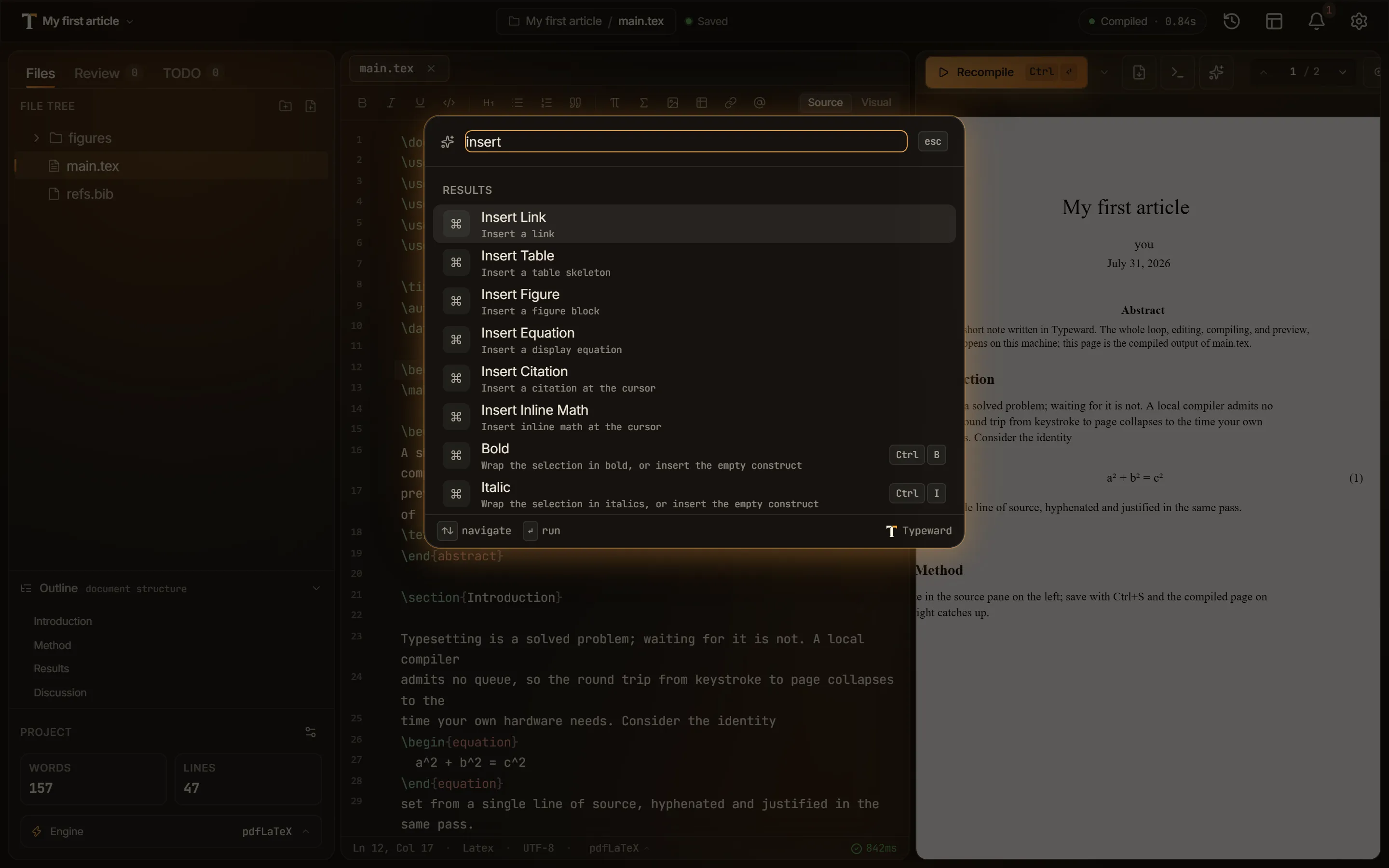
Section titled “Search from the command palette”From anywhere in the app, Ctrl+K opens the command palette, whose field reads Search commands, files, and projects….
- With an empty query, the palette lists your recently used commands, then up to five projects under Recent projects, then every available command under its own group.
- With a query, the palette fuzzy-matches commands, projects, and the current project’s text files into one ranked Results list.
Selecting a project switches to it. Selecting a file opens or activates its tab, exactly as Go to file does. Escape closes the palette.
Check that it worked
Section titled “Check that it worked”- Press
Ctrl+Pto open Go to file. - Type three letters of a file name that has no tab open.
- Press
Enterto open the file in a new tab at line 1.
You should now see that file’s heading structure in the Outline, with the heading holding your cursor highlighted.