

Editor overview
The editor shows one project: the sidebar lists its files, the source pane holds the file you are editing, and the preview pane renders the compiled PDF. Selecting a project in the projects library opens the editor on that project, and the project pill in the top bar switches to another one. This page names every region once, and the rest of these docs reuse those names.
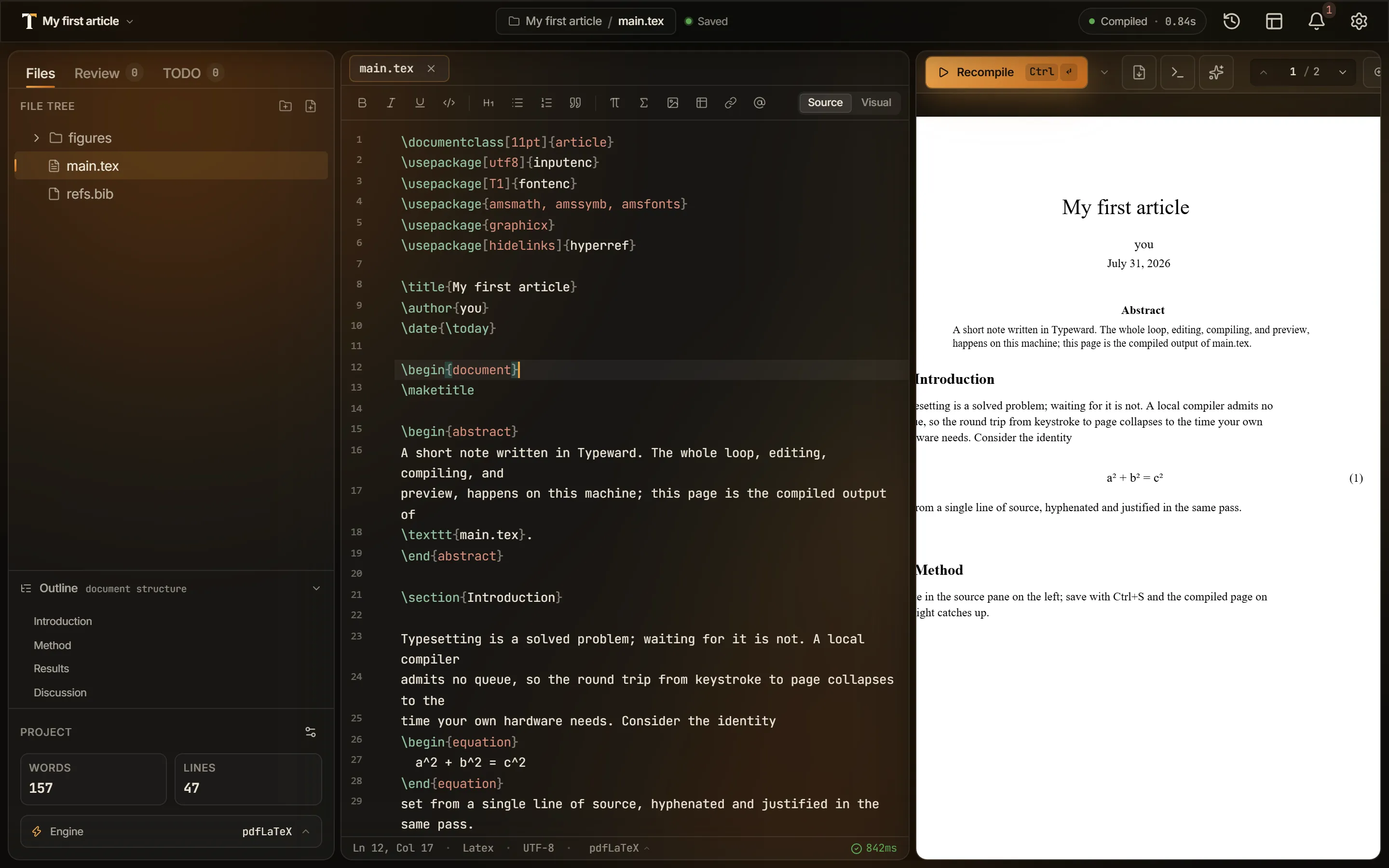
Top bar
Section titled “Top bar”The project pill carries the project name, and selecting it opens the Recent list of your other projects and Back to all projects. The breadcrumb names the project, the folders, and the file, next to a pulse dot reading Saved or Unsaved for the active file. Typeward saves that file for you while Autosave is on. See Autosave and crash recovery.
The rest of the top bar holds these controls:
- The compile pill shows a status word (Idle, Compiling…, Compiled, or Error) and the last compile’s duration in seconds. Select it to compile again, or to open the errors after a failure.
- The sync badge aggregates the sync state in projects backed by a WebDAV server, and is absent in every other project. See Cloud sync with WebDAV.
- Project history opens the local version history popover. See Version history.
- Layout sets the pane arrangement and the position of the logs panel.
- Notifications opens a drawer. Compile, sync, and update messages arrive as toasts, and nothing routes into the drawer.
- Settings, or
Ctrl+,(Cmd+,on macOS) from anywhere, opens Settings. Settings → Editor holds font size, line numbers, autosave, the Keybindings setting, and the compile defaults. See Settings reference.
Sidebar
Section titled “Sidebar”The sidebar is tabbed. Files, Review, and TODO are always present, and Refs and SCM appear when they have something to show.
- Files is the file tree, headed File tree with New folder and New file buttons. Create, rename, move, and import files from this tab. See Files and folders.
- Refs appears once a reference manager is configured, and lists your reference entries. See How references work.
- SCM appears when the project folder is a git repository, and holds staging and commits. See Git in Typeward.
- Review and TODO carry live counters: open comment threads on Review, and scanned markers plus open TODO threads on TODO. See Review comments and TODOs.
The sidebar footer holds a Project settings gear and live Words and Lines counts for the active file. In LaTeX projects it also carries an Engine pill naming the effective engine, for example pdfLaTeX. Selecting the pill opens the build menu. See Per-project build configuration.
Outline
Section titled “Outline”The Outline section of the sidebar shows the active file’s heading tree, and selecting an entry jumps the cursor there. The section collapses. A file with no headings reads No headings in this file., and a file type with no heading structure, such as .bib, .txt, or .json, reads Outline unavailable for this file type. See Search, replace, and navigation.
File tabs
Section titled “File tabs”Each open file gets a tab showing its project-relative path, a colored dot while the file has unsaved changes, and a close button. Right-clicking a tab offers Close, Close others, and Close saved.
Ctrl+W (Cmd+W on macOS) closes the active tab. Ctrl+Tab and Ctrl+Shift+Tab cycle through the open tabs, using the literal Ctrl key on every platform, including macOS. See Keyboard shortcuts.
Format toolbar
Section titled “Format toolbar”When the active file takes prose formatting (.tex, .sty, .cls, .typ, .md, and .markdown files, but not .bib), a format toolbar appears between the file tabs and the source pane. It carries style, structure, and insert groups, and for .tex files a Source and Visual switch at its end. See Visual editing for LaTeX.
Source pane
Section titled “Source pane”The source pane is the text editor itself. Each part of it has its own guide:
- Autocomplete, snippets, and formatting: completion from the built-in project index and from the optional language servers, plus the insert templates behind the format toolbar.
- Labels, references, and navigation:
Ctrl+click(Cmd+clickon macOS) orF12jumps from a\refor\citeto its definition, plus hover previews, warnings for undefined and duplicate labels, and a project-wide label rename. - Search, replace, and navigation: find and replace with
Ctrl+F(Cmd+Fon macOS), go to file withCtrl+P(Cmd+Pon macOS), the command palette withCtrl+K(Cmd+Kon macOS), and the Outline. - Grammar and spell checking: local Harper checks with one-click fixes, off until you turn them on.
- Editor context menu: what right-clicking offers in the source pane.
- Focus mode and keybindings:
Ctrl+Shift+F(Cmd+Shift+Fon macOS) hides the surrounding regions, and the Keybindings setting switches the source pane to Vim or Emacs bindings. - Themes and appearance: how the editor looks.
Preview pane
Section titled “Preview pane”The preview pane renders the compiled PDF. Its toolbar holds the compile button, a compile-options caret, page navigation, and zoom. The button reads Compile until a PDF is showing, Recompile afterwards, and Stop while a cancelable compile runs. See PDF preview.
Three more controls share that toolbar:
- The Export menu. See Exporting your work.
- A Logs toggle, while the logs position is In preview panel.
- An AI toggle, once you switch the assistant on. See AI assistant.
When the active tab is a Markdown file, the pane switches to a live Markdown preview.
Logs panel
Section titled “Logs panel”The logs panel holds the compile output. The Layout menu gives it two positions. In preview panel, the default, makes it a tab next to the PDF, and Bottom drawer puts it in a strip under the source pane.
Either position carries five tabs, most of them badged with a count: All logs, Errors, Warnings, Info, and Grammar. The Grammar tab lists spelling and grammar findings while checking is on. Typeward parses errors and warnings from the raw log into clickable cards. See Compiling LaTeX and reading errors.
Status bar
Section titled “Status bar”The status bar shows the cursor position, the active file’s language, and its encoding. In LaTeX projects it also carries a pill naming the effective engine, for example pdfLaTeX, which opens the same build menu as the sidebar footer’s Engine pill. Two indicators sit at its end:
- The grammar indicator counts current spelling and grammar problems, for example 3 problems. It appears only while Spell & grammar check is on and something is flagged, and selecting it opens the Grammar logs tab. See Grammar and spell checking.
- The compile indicator shows the last compile’s duration in milliseconds. Select it to compile again, or to open the errors after a failure. See Compiling LaTeX and reading errors.
Layout and what persists
Section titled “Layout and what persists”The Layout button in the top bar sets the pane arrangement: Split view (the default), Editor only, PDF only, or Detached preview. Detached preview moves the PDF into its own window. See PDF preview.
Typeward keeps the layout you set, with one exception:
| Part of the layout | How you change it | Across restarts |
|---|---|---|
| Pane arrangement | Layout → Pane layout | Kept |
| Logs position | Layout → Logs | Kept |
| Sidebar width | Drag the sidebar’s edge, between 200 and 400 px | Kept |
| Source and preview split | Drag the divider between the panes | Kept |
| Detached preview | Layout → Pane layout | The PDF returns to the preview pane |
Focus mode uses the same split between the source pane and the preview pane, so leaving focus mode puts them back exactly where they were.