

PDF preview
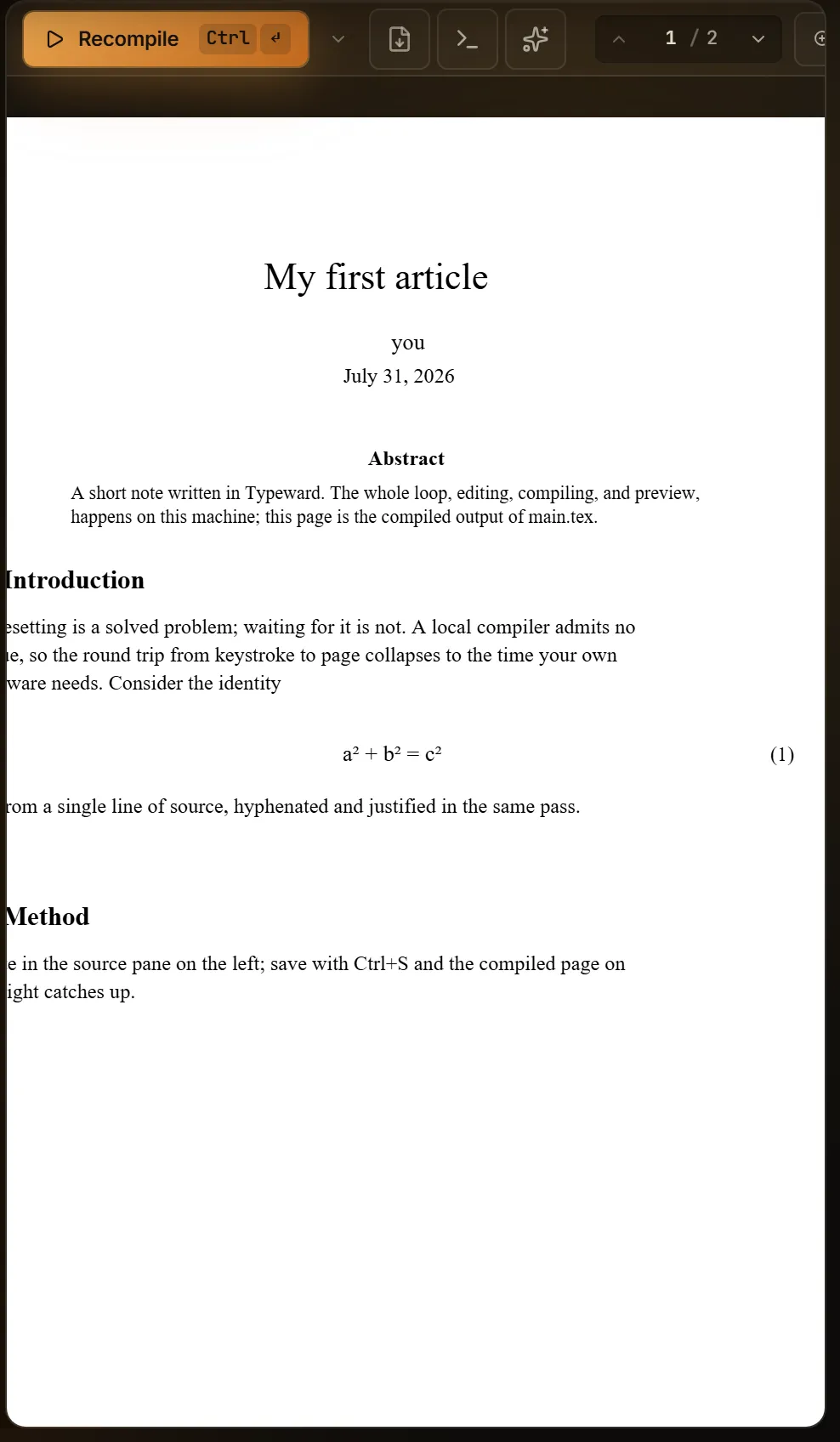
The preview pane shows the compiled PDF with a real text layer, so you can select and copy text straight off the page. The Layout button in the top bar sets where the pane lives. Split view, the default, keeps it beside the source pane, PDF only gives it the whole window, and Detached preview moves it into a window of its own. Opening a Markdown file swaps the pane to the Markdown preview for as long as that tab is active.
Known limitations
Section titled “Known limitations”- The preview pane has no text search.
Ctrl+F(Cmd+Fon macOS) belongs to the source pane and does nothing while the focus sits in the preview. The pages carry a real text layer, so you can select and copy from them, but nothing searches across them. To search the compiled document, export the PDF and open it in a PDF reader. See Search, replace, and navigation. - Typeward has no print command, neither in the preview toolbar nor in the menu bar. Select Export → Export PDF in the preview toolbar, then print from your PDF reader. See Exporting your work.
Preview toolbar
Section titled “Preview toolbar”The toolbar runs left to right:
- The primary compile button, with an elapsed-time ticker beside it while a build runs.
- A caret that opens the Compile options popover.
- The Export menu. See Exporting your work.
- A Logs toggle, present only while the logs panel sits In preview panel. See Compiling LaTeX and reading errors.
- An AI toggle, which swaps the pane to the assistant chat and carries a dot while a reply streams in. The assistant is off until you turn it on, and the toggle is absent until then. See AI assistant.
- The PDF filename.
- Page navigation, and then the Zoom dropdown as the last control.
Compile button
Section titled “Compile button”The button reads Compile until a PDF exists and Recompile afterwards. While a build runs it turns into a red Stop button. Selecting Stop kills the build, and the pane returns to idle with a Compile stopped notice rather than an error.
Ctrl+Enter (Cmd+Enter on macOS) compiles from the keyboard, and Ctrl+S (Cmd+S on macOS) saves every file with unsaved changes and then compiles once. See Compiling LaTeX and reading errors.
Compile options
Section titled “Compile options”The caret opens a popover with Compile on save and Stop on first error switches, which edit the global settings. The popover also carries a read-only line naming the global engine, reading Engine: System TeX or Engine: Tectonic. That line can also read TeX Live (WASM), the engine only mobile builds use, and Typeward ships no mobile build.
The engine a project actually compiles with is the one named in the status bar, where a per-project override wins. See Per-project build configuration.
Page navigation
Section titled “Page navigation”Chevrons step to the previous and next page. The current-page box is editable: type a page number and press Enter, or move the focus out of the box, to jump there. Typeward clamps out-of-range values to the document.
Three controls set the zoom level.
| Control | What it does |
|---|---|
| The Zoom dropdown | Offers Fit width and Fit page, then the presets 50, 75, 100, 125, 150, and 200% |
Ctrl and the mouse wheel (Cmd and the wheel on macOS), or a trackpad pinch |
Zooms between 25 and 400%, anchored at the pointer |
| Settings → Editor → PDF preview | The Default zoom row sets the zoom the preview opens at: 80, 90, 100, 110, 125, or 150%, and 110% by default |
Typeward recomputes Fit width and Fit page whenever you resize the pane.
Ribbons and the empty pane
Section titled “Ribbons and the empty pane”When you open a project, Typeward looks for the PDF a previous build left on disk and seeds the preview from it. You therefore start with pages instead of an empty pane, and a ribbon says where those pages came from.
| Situation | What the pane shows |
|---|---|
| A previous build left a PDF on disk | Those pages, under an accent-tinted From last build. Nothing compiled yet this session ribbon with a Compile link |
| A compile failed while an earlier PDF was on screen | The earlier pages, under a warning-tinted Preview is stale. Showing the last successful compile ribbon with a View errors link into the logs panel |
| No build has produced a PDF | A Compile to render PDF button instead of pages |
A preview restored from disk carries no build duration, and the Errors tab reads Showing the last build, adding that compiling refreshes the preview and surfaces diagnostics.
Rendered pages
Section titled “Rendered pages”Pages render as you scroll them into view, and each one carries a p. 3 margin label. A footer marks the end of the preview with the total page count.
Settings → Editor → PDF preview also holds Invert on dark themes, off by default, which flips the white page to dark for night reading. It takes effect only while a dark theme is active, and under a light theme the pages render normally.
Comments and TODOs
Section titled “Comments and TODOs”Select text on a page and a floating chip offers Comment and TODO. Choosing one opens a compose card where you write the note and select Add comment or Add TODO.
Typeward paints open threads onto the pages as soft highlight bands, accent-tinted for comments and warning-tinted for TODOs, and re-places them after every recompile. Select a band to open its thread. See Review comments and TODOs.
Forward and inverse search
Section titled “Forward and inverse search”Ctrl+J(Cmd+Jon macOS) scrolls the preview to the output of the line under your cursor and pulses a brief highlight. That direction is forward search.- Double-click a PDF page, or
Shift+click, to jump the source pane to the matching file and line. Double-clicking a word also selects that word in the source pane. That direction is inverse search.
Both directions need SyncTeX data and the synctex command-line tool that ships with a TeX distribution. When the tool is missing, the jumps quietly do nothing rather than reporting an error. Typst produces no SyncTeX data at all, so neither direction works in a Typst project. See Compiling LaTeX and reading errors.
Scroll position across recompiles
Section titled “Scroll position across recompiles”A successful compile swaps the new PDF in without disturbing you. Rendering is double-buffered, so the old pages stay visible until the new ones are drawn and no white flash appears, and your zoom level carries over. A recompile that leaves the PDF untouched on disk (latexmk deciding nothing changed) skips the reload entirely.
Typeward restores your scroll position in two steps. When the compile starts, it inverse-searches the top of the current viewport against the PDF still on screen and records the source file and line you were reading. Once the new PDF loads, the raw scroll offset goes back first. Typeward then refines the view so that same source line sits near the top of the viewport. Your reading position therefore survives an edit that adds or removes pages earlier in the document.
That refinement needs SyncTeX. Where SyncTeX is unavailable, such as a Tectonic-only install or a Typst project, the raw scroll offset restore is the silent fallback. The position can then drift when the page count changes.
Detached preview window
Section titled “Detached preview window”The Layout button in the top bar (a grid icon) offers Pane layout → Detached preview. It opens the PDF in its own window and collapses the in-app pane, so the source pane takes the full width. That helps on a second monitor.
The detached window is PDF-only, with no Export menu, no Logs or AI toggles, and no Stop button. It keeps Recompile, page navigation, zoom, double-click inverse search, forward-search targets, and the review and TODO highlight bands with their selection chip. Every action relays back to the main window, which stays the single source of truth. The detached window also follows the main window’s theme and accent.
To return to the split view, select the floating Reattach pill or close the window. Choosing any in-pane layout from the Layout menu while detached closes the window too. Detached preview is not offered on tablet-sized screens.